Mark transactions as reconciled
Tick a transaction once it matches your bank or card statement, so it moves off the board and into Completed.
The Transactions board shows only open transactions: the ones you haven't checked against the bank yet. Once a transaction matches your bank or card statement, mark it reconciled. It moves to the Completed page with who reconciled it and when, and your board stays short.
Reconcile from the board#
Go to Transactions.
Click the round tick circle at the left of the row.
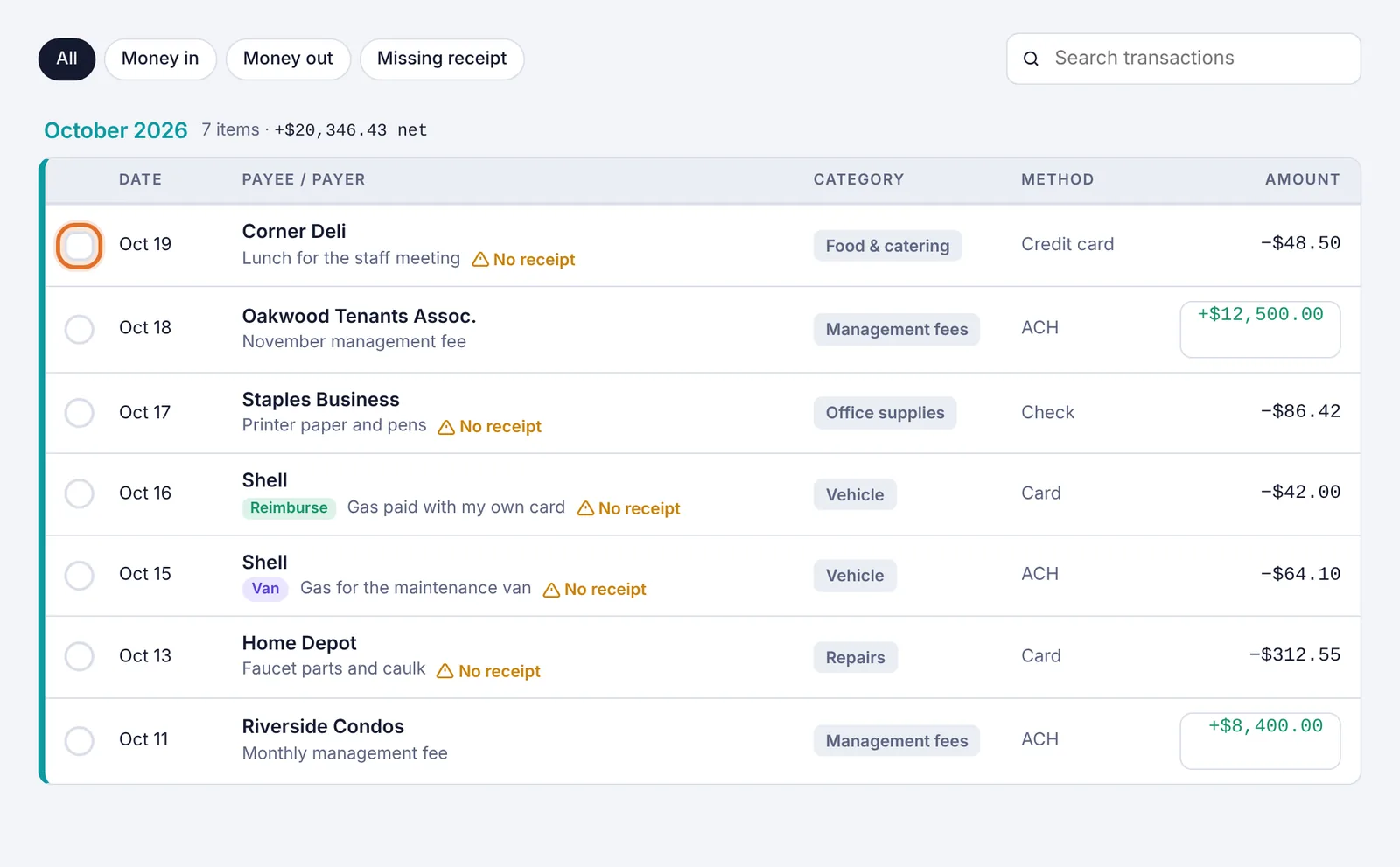
The tick circle at the left of a transaction row The row disappears and a message says Moved to Completed. Click Undo in that message if you ticked the wrong one.
Reconcile from the transaction itself#
Click the transaction to open it.
Click Mark reconciled at the bottom.
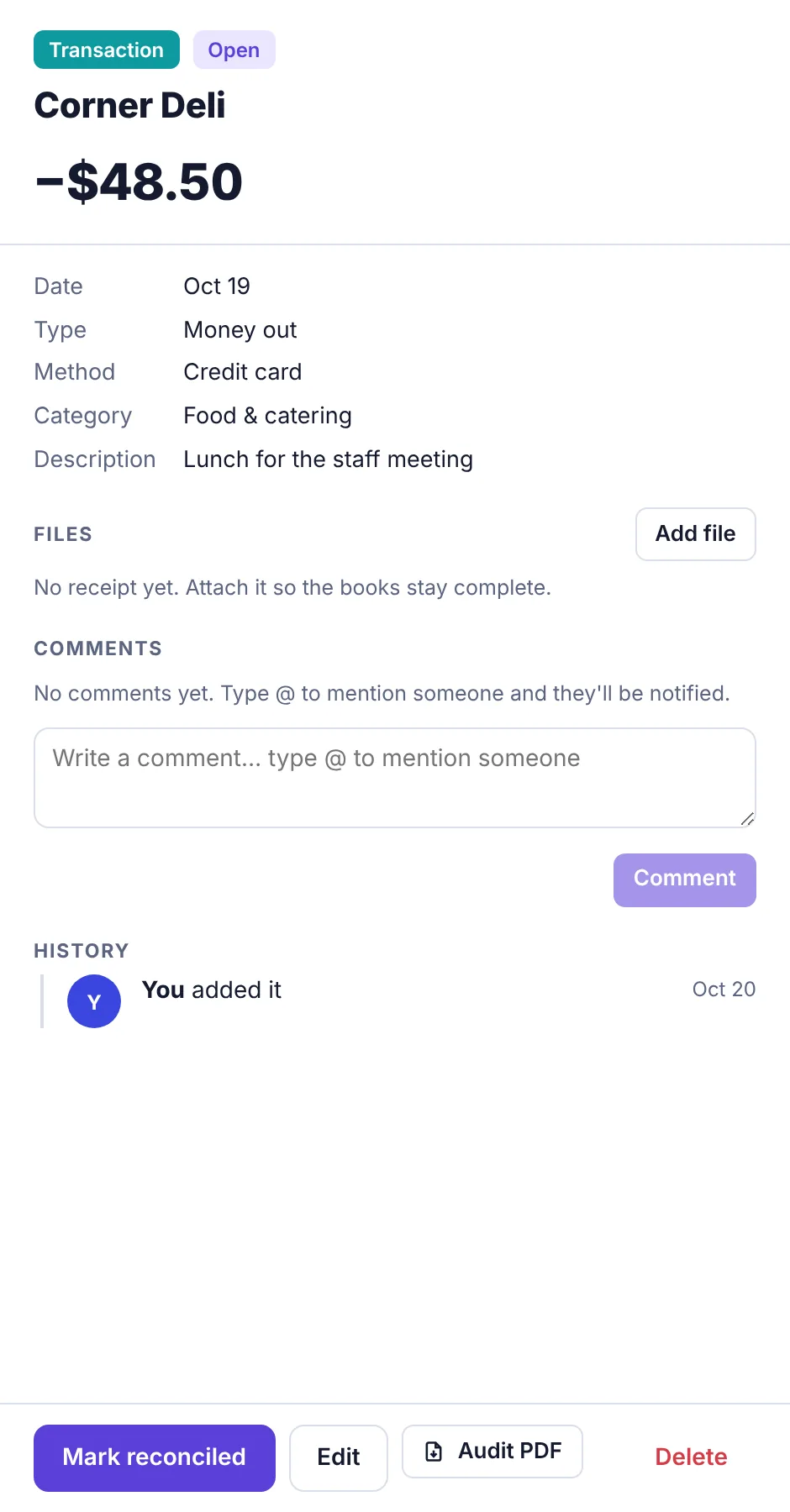
An open transaction with the Mark reconciled, Edit, Audit PDF and Delete buttons
If you're an employee#
Employees see Ask to reconcile instead of Mark reconciled. Clicking it (or the tick circle) sends a request to an admin. The transaction stays on the board until they approve it. If one is already waiting, Plainstamp tells you This is already waiting for an admin to reconcile.

See or reopen reconciled transactions#
In the menu, click Completed.
Click the Transactions tab at the top.
To send one back to the Transactions board, click its green tick. Only owners and admins can reopen a transaction.
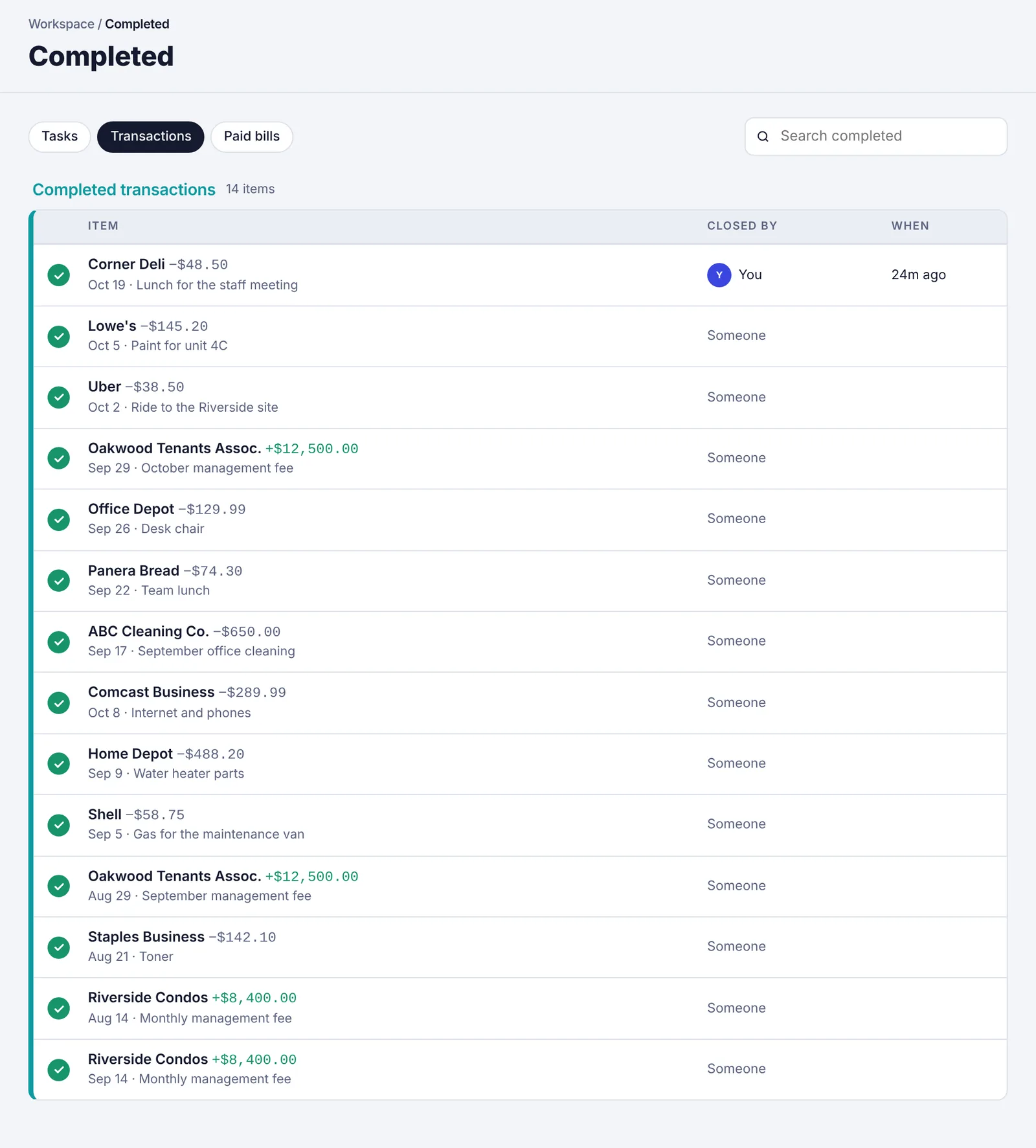
You can also open a reconciled transaction and click Reopen.