Search for anything
Find tasks, transactions, bills and vendors by name, invoice number, description, category or date, and save searches you use often.
The Search page looks across the whole workspace at once, so you don't have to remember which board something is on.
Search#
Click Search in the menu.
Type into Search for: a vendor name, an invoice number, a word from a task or description, a category or a payment reference.
Narrow it down if you like:
In: Everything, Tasks, Transactions, Bills or Vendors.
Status: Any, Open / unpaid or Done / paid.
From and To: a date range. For tasks and bills this is the due date; for transactions it's the transaction date.
Click Search (or press Enter).
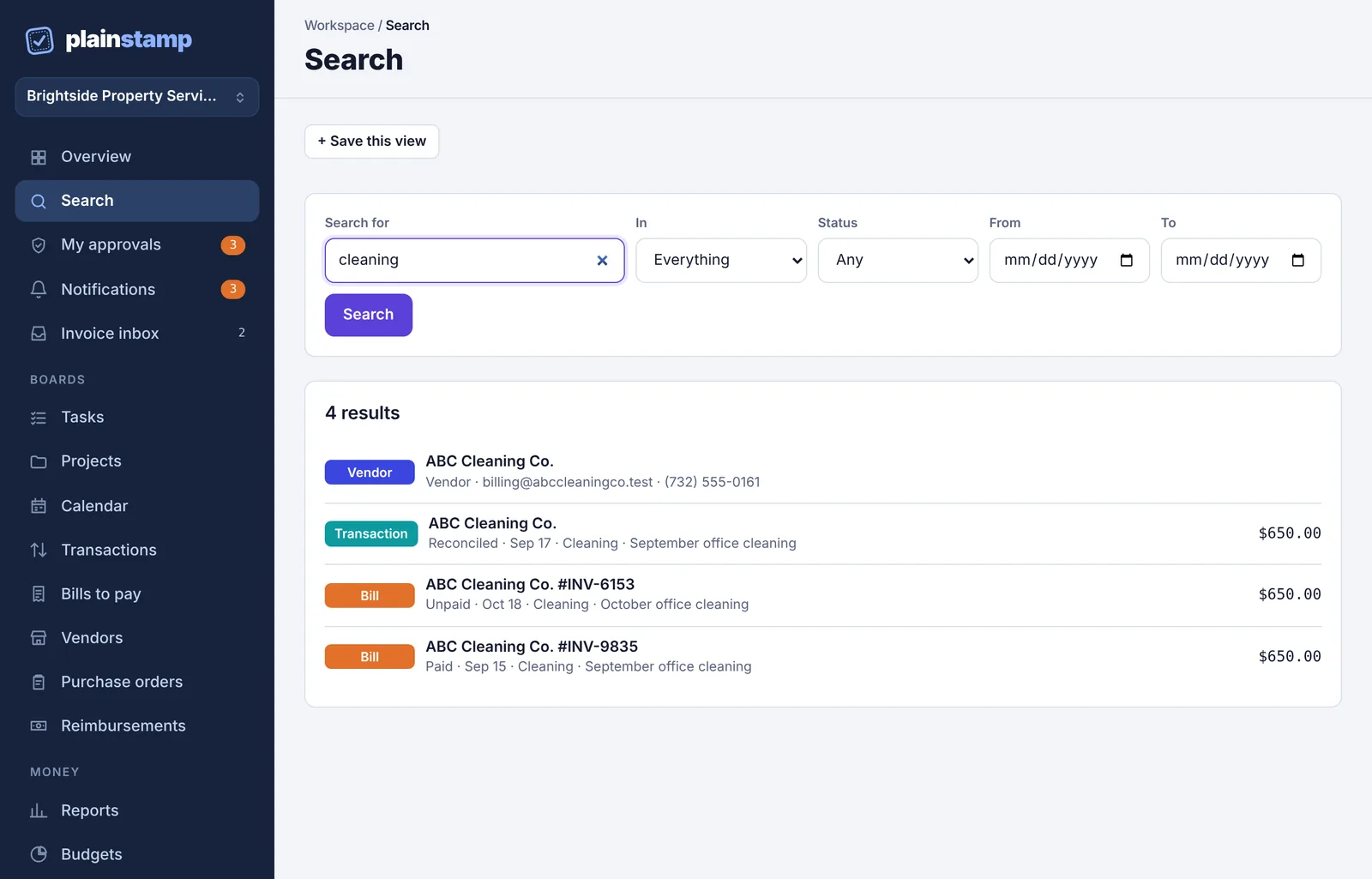
The Search page showing four results for "cleaning": a vendor, a transaction and two bills.
Each result shows what it is (Task, Transaction, Bill or Vendor), whether it's open, paid or reconciled, its date and amount. Click a result to open it. Finished tasks, paid bills and reconciled transactions open the Completed page.
You can also search by dates alone: leave Search for empty and fill in From and To to see everything due in that range.
Save a search you use often#
Run the search.
Click + Save this view above the search form.
Type a name where it says Name this view and click Save.
Your saved searches show as buttons above the form, so next time it's one click.
What search doesn't cover#
Search looks at tasks, transactions, bills and vendors. It doesn't look inside attached files, comments or purchase orders. To find a file, use the Documents page.