Invite your team
The quick way to bring people into your workspace, and a one-table summary of what each role can do.
Plainstamp works best when everyone who spends money or does the work is in it. Inviting someone takes a minute: type their email, pick a role, and Plainstamp emails them the invite.
Invite someone#
Click Team in the menu.
Under Invite someone, type Their email (optional). If you fill it in, Plainstamp emails the invite to that address, and only someone signed in with that address can use the link.
Pick their Role (see the table below). The line under the form explains what that role can do.
Click Create invite link.

The Invite someone panel with an email typed in, the Role list set to Employee and the Create invite link button. Plainstamp emails the invite and shows "We emailed the invite to jordan@example.test. You can also copy the link below and send it yourself." The email has an Accept the invite button and works for 14 days. If you'd like, click Copy and also send the link by text or chat.
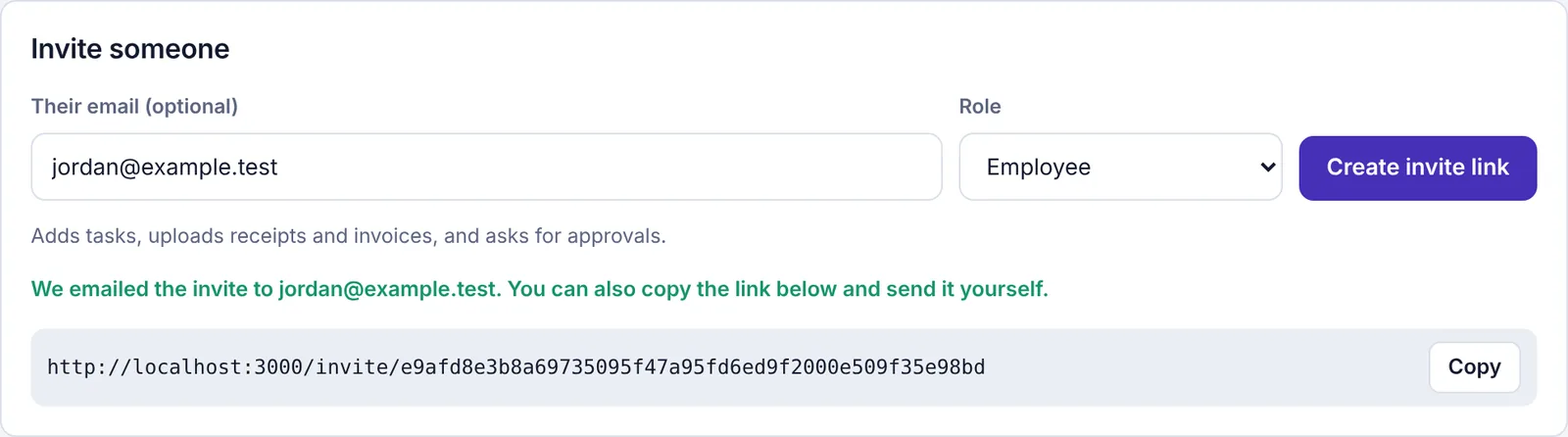
The message saying the invite was emailed, with the link and the Copy button.
When they open the link, they create an account (or sign in) and click Join workspace. Until then they're listed under Waiting to join on the Team page, where you can copy the link again, click Email it again (for invites with an email), or click Cancel invite. Links last 14 days.
For everything else (changing roles, turning people off, spending limits, handing over ownership) see Invite people and manage your team.
The roles in one table#
| Owner | Admin | Employee | Worker | Accountant | View only | |
|---|---|---|---|---|---|---|
| Add tasks | Yes | Yes | Yes, for approval | Yes, for approval | No | No |
| Add bills, transactions, vendors | Yes | Yes | Yes, for approval* | No | No | No |
| Approve requests | Yes | Yes | No | No | No | No |
| See transactions, bills and vendors | Yes | Yes | Yes | No | Yes | Yes |
| See reports, budgets, forecast, bank feed | Yes | Yes | No | No | Yes | No |
| See other people's tasks | Yes | Yes | Yes | No | Yes | Yes |
| Comment and attach files | Yes | Yes | Yes | Yes, on their tasks | Comment | No |
| Invite people, change settings | Yes | Yes | No | No | No | No |
| Change the plan and pay | Yes | See only | No | No | No | No |
| Uses a seat | Yes | Yes | Yes | Yes | No (1 free on Starter, 2 on paid plans) | Yes |
\* On the Small plan and up, an admin can give an employee a monthly spending limit. Expenses under it go straight onto the board.
In plain words:
Owner runs the workspace and its billing. There's one owner, and they can hand the job to an admin.
Admins approve requests, record payments and edit money records.
Employees add tasks, upload receipts and invoices, and ask for approvals.
Workers see only the tasks given to them and the ones they add. Good for field staff, cleaners or anyone who just needs their job list.
Accountant is for your outside bookkeeper or CPA. They're free and don't use a seat: 1 on Starter, up to 2 on paid plans.
View only can look at the boards but not change anything.
The full details are in Roles: who can do what.
How many people can I invite?#
Each plan has a number of seats: the Starter plan has 3, Small 6, Team 20 and Business unlimited. Invites that haven't been used yet count toward the limit until they expire or you cancel them. Accountants don't use a seat. The Team page shows "X of Y seats used"; when you're full, owners and admins see Get more seats.