Completed items and the Activity log
Where finished tasks, reconciled transactions and paid bills go, how to reopen one, and how to read the workspace's permanent history.
Finished work doesn't vanish. It moves to the Completed page, and every step along the way is written to the Activity log.
The Completed page#
When you tick off a task, mark a transaction reconciled or pay a bill in full, it leaves its board and goes to Completed.
Click Completed in the menu (under Records).
Pick a tab: Tasks, Transactions or Paid bills.
Type in Search completed to find something by name, description, invoice number or payment reference.
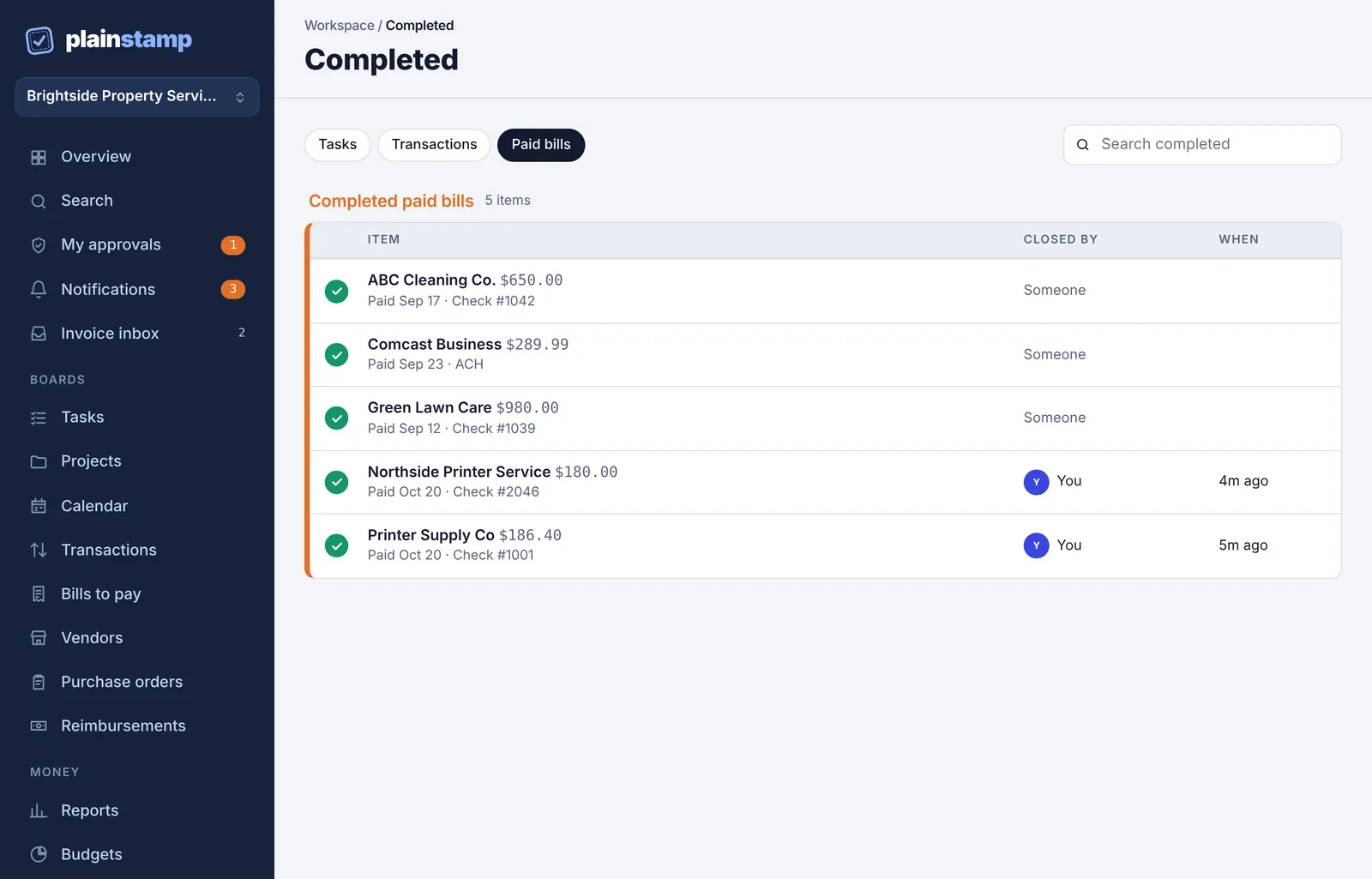
The Completed page on the Paid bills tab, showing each bill, who closed it and when.
Each row shows who closed it (Closed by) and When. Paid bills also show the date paid, the method and check number. Click a transaction or bill to open its details.
Reopen something#
Click the green tick at the start of the row. The item goes back to its board as open.
Tasks can be reopened by owners, admins and employees. Workers can reopen tasks assigned to them.
Transactions and paid bills can only be reopened by an owner or admin.
The Activity log#
The Activity log is the workspace's history. Every request, approval, rejection, payment, edit and setting change is recorded with who did it and when. Nothing in it can be edited or erased, so it's a reliable record for your accountant or an audit.
Click Activity log in the menu (under Records).
Use the buttons at the top to filter: Everything, Approvals, Money or Just me.
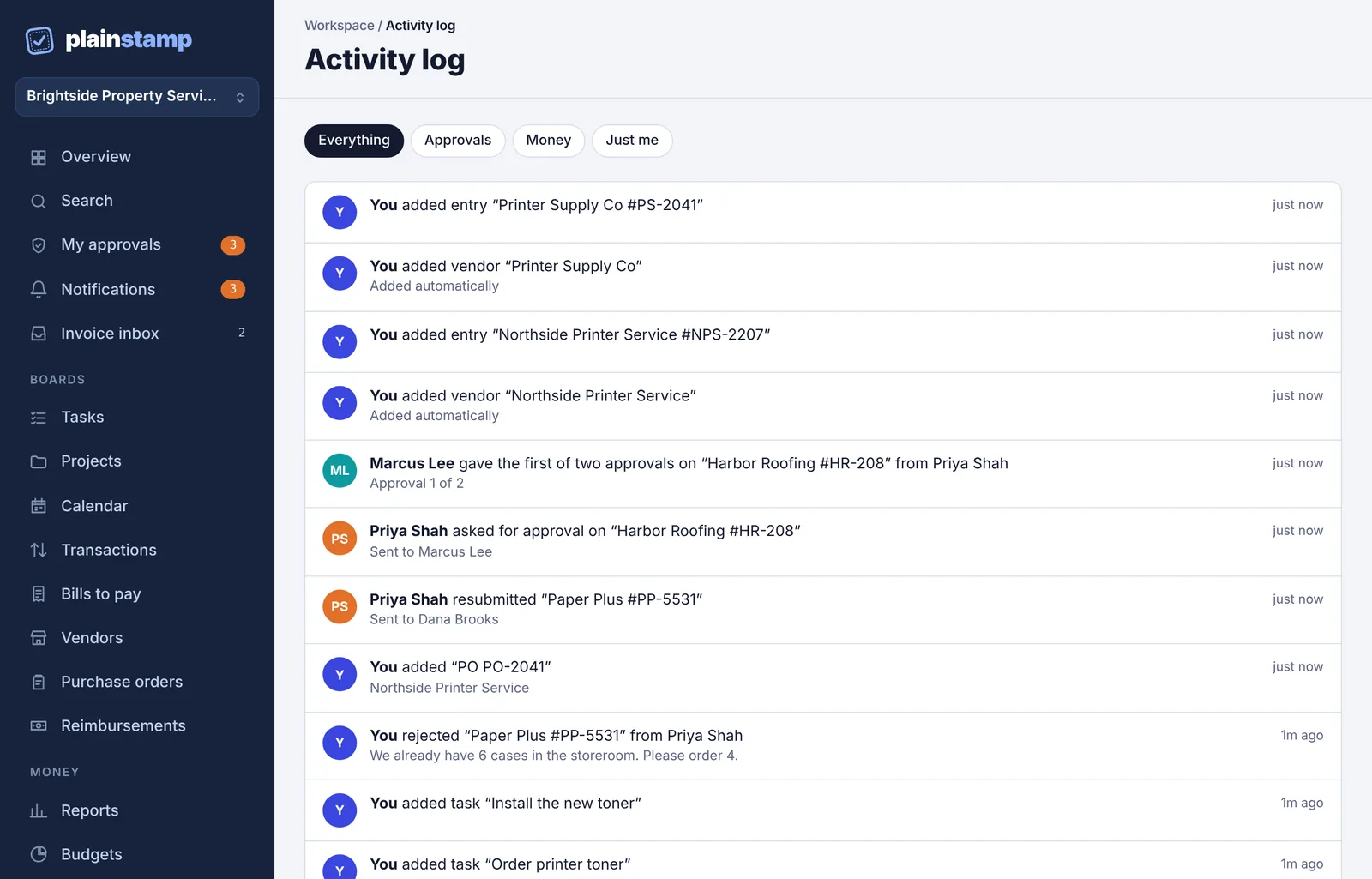
The Activity log with the Everything, Approvals, Money and Just me filters and a list of recent actions.
Each line says who did what, for example "Priya Shah asked for approval on … Sent to Marcus Lee", with extra detail underneath (a rejection reason, who a request was sent to). The log shows the latest 300 actions.