Create your account
Sign up with your email, Google or Microsoft, confirm your email address and get to your workspace.
You need a Plainstamp account before you can set up a workspace or join your team's. It's free to sign up, and the Starter plan is free for up to 3 people with no credit card.
Sign up with your email#
Go to the Plainstamp sign-up page (from the website, click Create an account, or on the sign-in page click Create an account under the form).
Type Your name. This is the name your team sees on everything you do.
Type your Work email.
Choose a Password with at least 8 characters.
Leave Send me tips and product news (about once a week). Unsubscribe any time. ticked if you'd like those emails, or untick it. This only covers news from Plainstamp; it has nothing to do with the notifications your workspace sends you.
Click Create account.
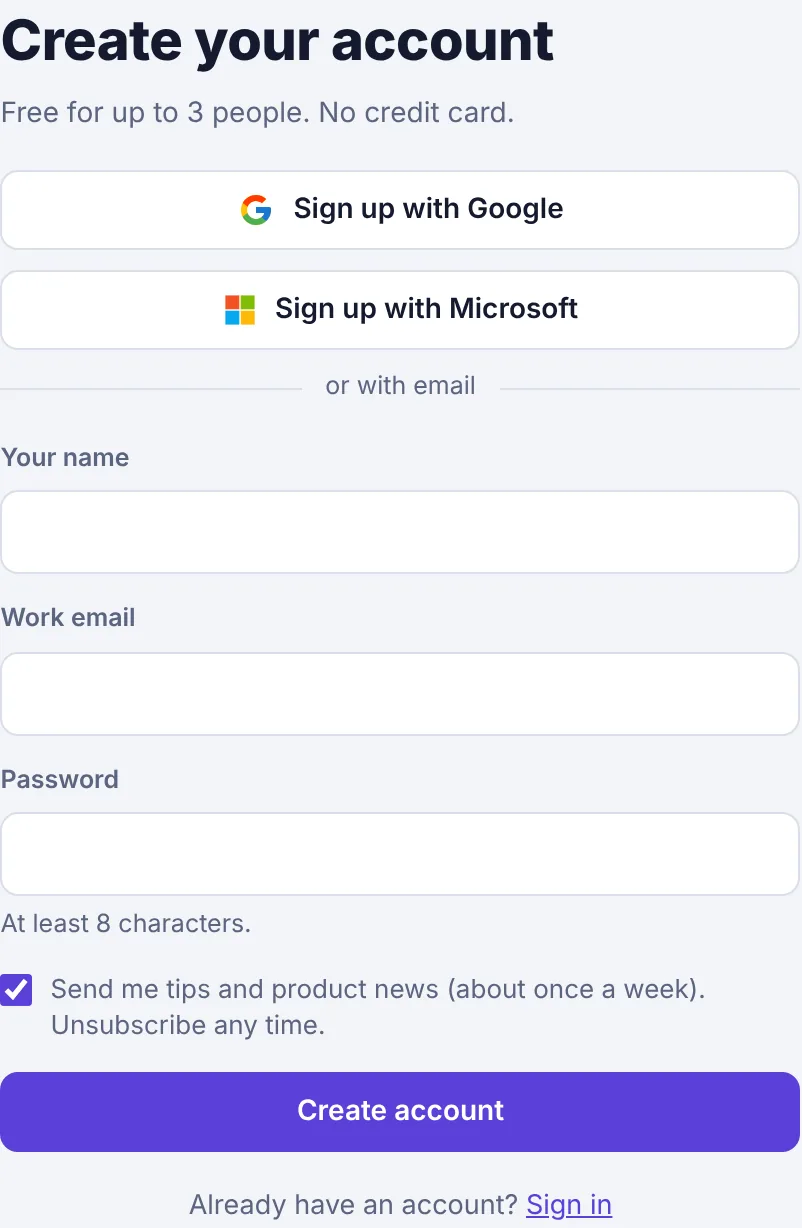
The Create your account page with Google and Microsoft buttons, the name, email and password fields and the tips and news box.
Confirm your email address#
After you click Create account, the page says "Almost there. We sent a confirmation link to …".
Open your inbox and look for an email titled Confirm your email for Plainstamp.
Click Confirm my email in that email. If the button doesn't work, copy the link under it into your browser.
You're signed in and taken to the next step: setting up your office, or joining the workspace you were invited to.
The link works on any device, so it's fine to open it on your phone even if you signed up on a computer.
Didn't get it? Under the message, next to "Didn't get the email?", click Send it again (you can ask once a minute).
If you try to sign in before confirming, you'll see "Confirm your email first. Check your inbox for the link we sent." with a Send it again button under it.
Sign up with Google or Microsoft#
If your office uses Google Workspace, Gmail, Microsoft 365 or Outlook, you can skip the password.
On the sign-up page, click Sign up with Google or Sign up with Microsoft.
Choose your account and allow Plainstamp to see your email address.
You come back to Plainstamp, signed in, ready to set up your office.
You don't need to confirm your email when you sign up this way, because Google or Microsoft already has. Later you can add a password too, from Settings › Sign-in & security, so you can also sign in with your email.
If you see "Google sign-in isn't available right now. Use your email and password instead.", use the email form instead.
Join a workspace from an invite#
When an admin invites you by email address, Plainstamp emails you the invite, with the subject "Name invited you to workspace on Plainstamp" and an Accept the invite button. An admin can also copy the link and send it to you by text or chat. If you're expecting an invite and can't find it, check your spam folder, then ask the admin to click Email it again or send you the link.
Click Accept the invite in the email (or open the link you were sent). If you aren't signed in you'll see You've been invited to Plainstamp.
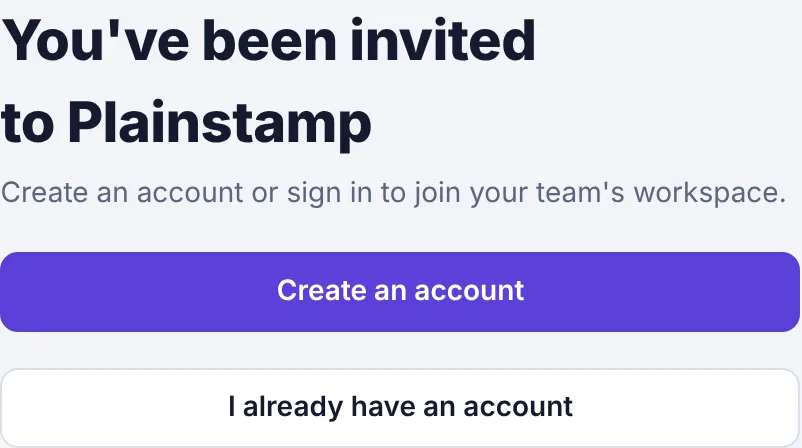
The invite page with Create an account and I already have an account buttons. Click Create an account (or I already have an account if you have one). The sign-up page now says Join your team.
Sign up as above. If the invite was sent to a particular email address, sign up with that same address.
After signing up you see Join and the workspace name, with the role you'll have. Click Join workspace.
If you're already signed in with a different email than the one invited, you'll see Sign out, then sign in as … instead of Join workspace. Click it, sign in with the invited address, then open the invite link again.
Invite links last 14 days and work once. If yours has expired or doesn't work, see The invite link doesn't work.
What happens next#
If you created your own account, Plainstamp asks for your office's name and creates your workspace. See Set up your workspace.
If you joined from an invite, you go straight into your team's workspace. Read the quick start for your role: owner or admin, employee, worker or accountant.