Find your way around Plainstamp
A two-minute tour of the screen: the menu on the left, the Overview page, the New button and the phone layout.
Everything in Plainstamp lives in one workspace: your office's shared board. When you sign in you land on its Overview page (Workers land on My work).
The menu on the left#
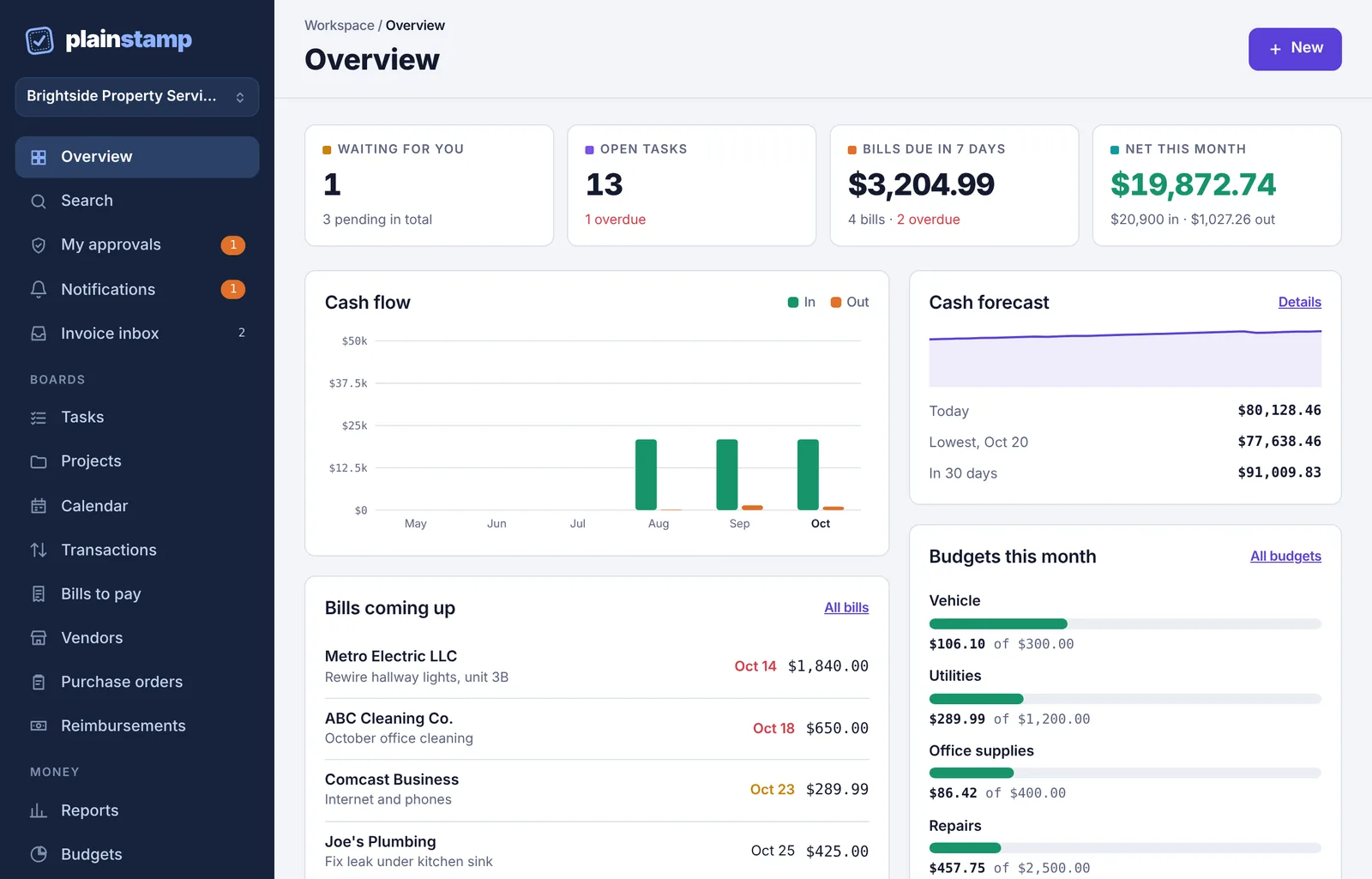
At the top is the workspace name. Click it to switch to another workspace or create one. Below it, the menu is grouped the same way for everyone, but people only see the parts their role allows.
Overview shows what needs you today: things waiting for your approval, open tasks, bills due soon and money in and out this month. See The Overview page.
Search finds tasks, transactions, bills and vendors. See Search for anything.
My approvals (for owners and admins) or My requests (for everyone else) lists everything waiting for a decision. The orange number is how many are waiting for you.
Notifications lists everything Plainstamp has told you about. The orange number is how many you haven't read.
Invoice inbox holds invoices emailed in to the workspace, waiting to be turned into bills.
Boards hold your work: Tasks, Projects, Calendar, Transactions, Bills to pay, Vendors, Purchase orders and Reimbursements.
Money holds Reports, Budgets, Cash forecast, Bank feed and (for admins) Pay run. Only owners, admins and accountants see this group.
Records holds Documents, Completed and the Activity log.
Workspace holds Team, Connections and Plan & billing (owners and admins only) and Settings.
At the very bottom you'll see your name and role, the light/dark switch (Auto follows your device) and Sign out.
Some pages need a paid plan. They still show in the menu, and open to a short note saying which plan includes them.
What a Worker sees#
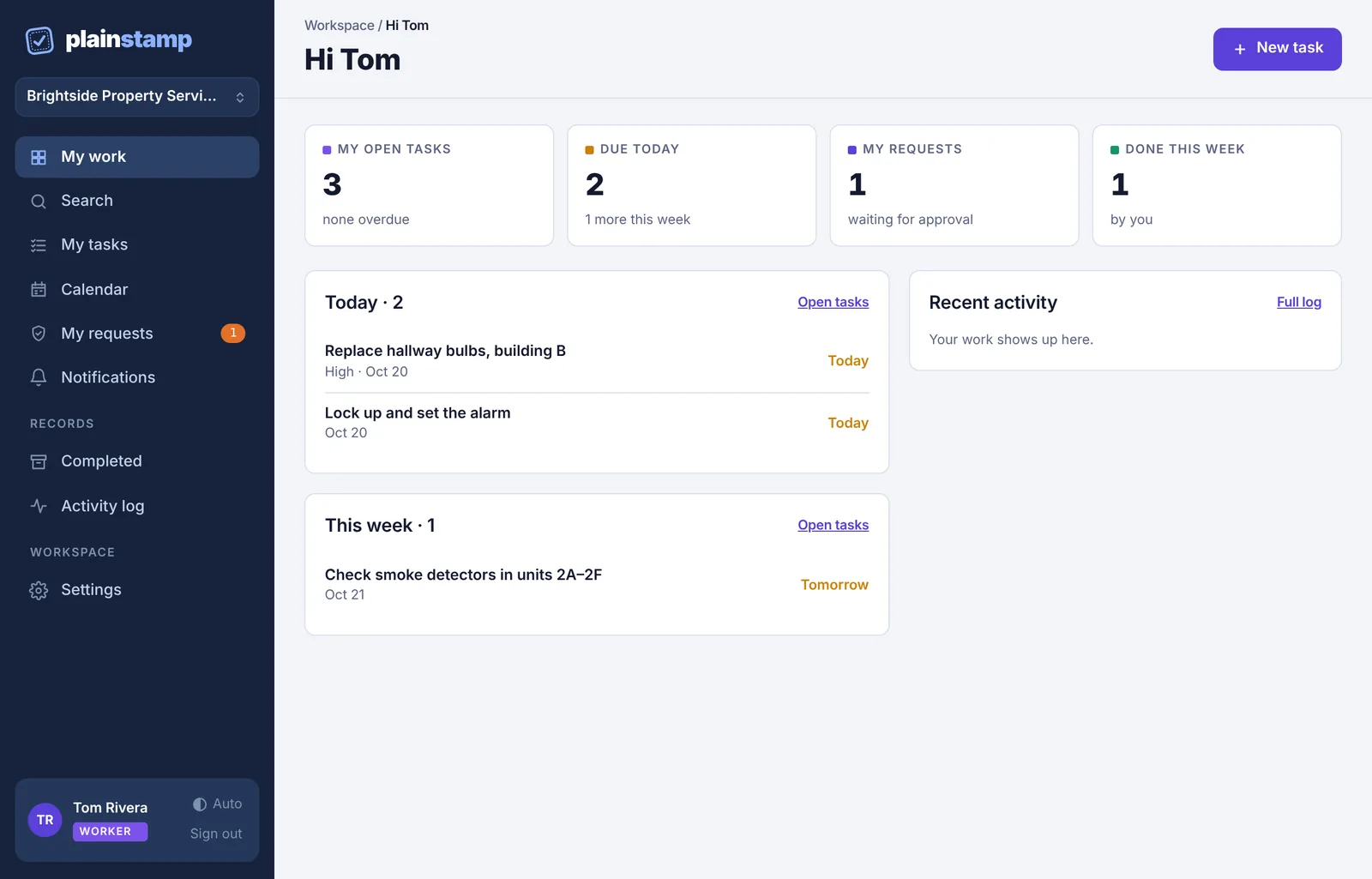
Workers have a shorter menu with just their own work: My work, Search, My tasks, Calendar, My requests, Notifications, Completed, Activity log and Settings.
Add anything with the New button#
The purple New button at the top right of most pages opens New entry. Pick Task, Transaction, Bill to pay, Vendor or Mileage at the top of the form. You can drop a photo or PDF of an invoice or receipt onto the form and Plainstamp fills in the details for you.
If your role needs approval for it, the button at the bottom says Submit for approval and Plainstamp sends it to the right person. Workers see New task instead, because they can only add tasks.
On a phone#
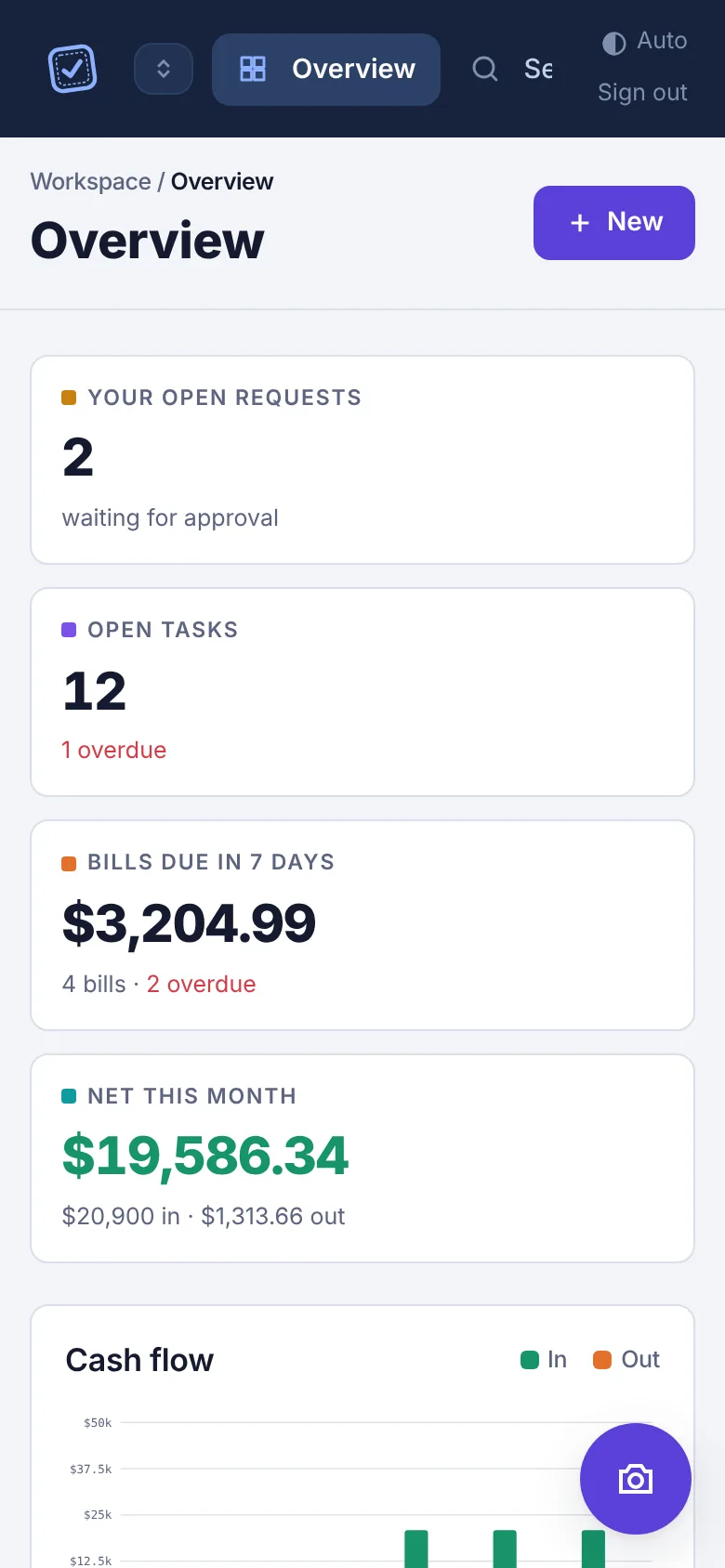
On a phone the menu becomes a bar across the top. Swipe it sideways to see every item. Owners, admins and employees also get a round camera button at the bottom right: tap it to snap a receipt.