Set up your workspace
Name your office, work through the "Get your office set up" checklist on the Overview, and try the sample office.
A workspace is your office's private board. When you create one you become its Owner, and it starts on the free Starter plan. This article walks you through the first few minutes.
Name your office#
Right after you create your account, Plainstamp shows Set up your office.
Type your Office or organization name, for example your company's name.
Click Create workspace.
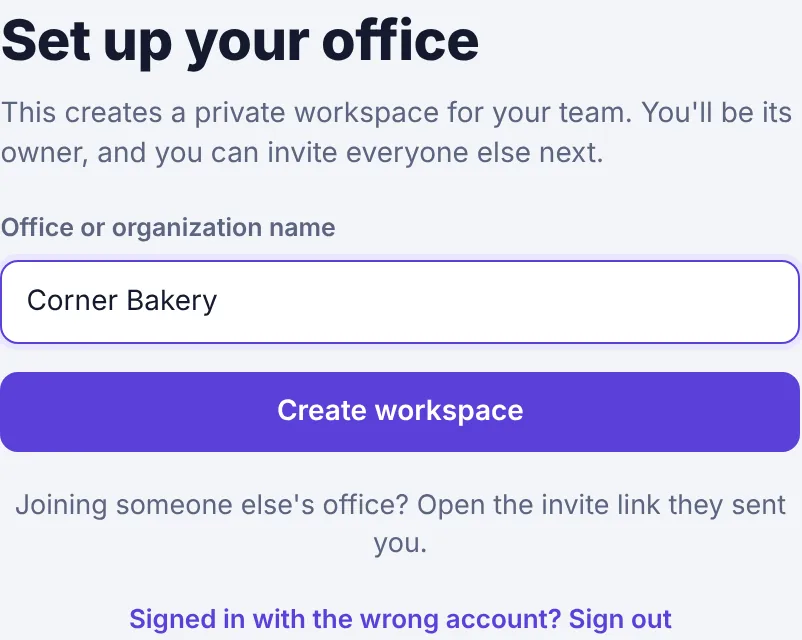
The Set up your office page with the office name typed in and the Create workspace button.
You land on the Overview page of your new workspace. You can change the name later in Settings › General; the workspace's web address stays the same so links keep working.
Work through the setup checklist#
The top of the Overview shows Get your office set up, with six steps and a progress bar. Each step has a button that takes you to the right page, and the step ticks itself off once it's done.
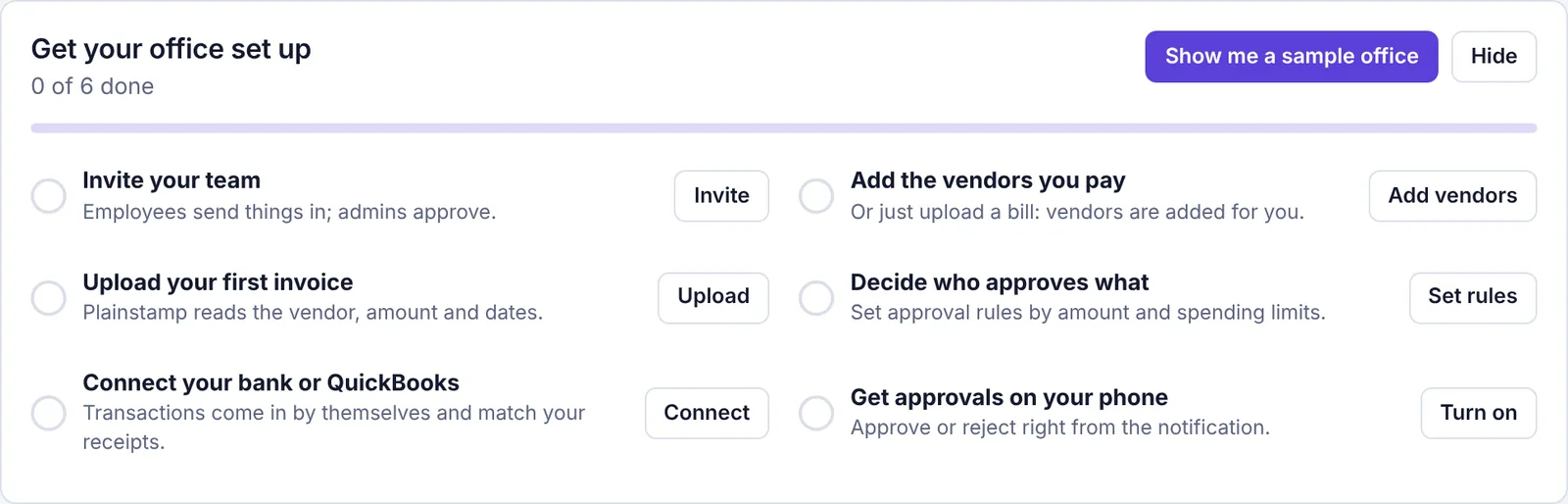
| Step | Button | It's done when |
|---|---|---|
| Invite your team | Invite | At least one other person has joined. See Invite your team. |
| Add the vendors you pay | Add vendors | You've added a vendor. Uploading a bill adds its vendor for you. |
| Upload your first invoice | Upload | You've recorded a bill or transaction. Plainstamp reads the vendor, amount and dates from the file. |
| Decide who approves what | Set rules | You've set an approval rule, or someone has approved or rejected a request. |
| Connect your bank or QuickBooks | Connect | A bank or accounting app is connected. |
| Get approvals on your phone | Turn on | You've turned on phone or desktop notifications on at least one device. |
Some steps use features from paid plans (approval rules by amount and QuickBooks come with the Small plan and up; the bank feed with the Team plan and up). You can skip any step.
Try the sample office#
Not sure where to start? Fill an empty workspace with a believable example office, then look around.
On the Overview, click Show me a sample office. (The button only shows while the workspace has no real tasks, bills or transactions.)
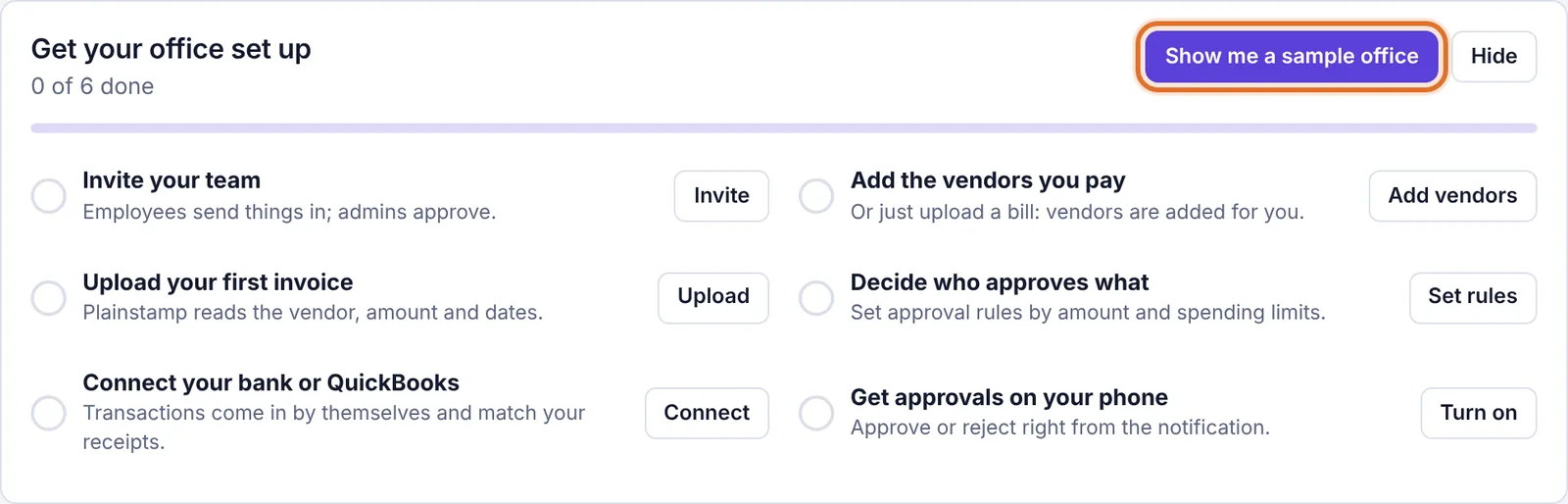
The Show me a sample office button on the setup checklist. Wait a few seconds. Plainstamp adds five vendors, a handful of bills (one already overdue), recent transactions and five tasks, including a repeating Month-end close with a checklist. Everything is tagged Sample.
Look around: the Overview cards and charts fill in, and the boards have items to open, pay and tick off.
The checklist now says "you're looking at a sample office".
Remove the sample data#
When you're ready to start for real:
Go to the Overview.
Click Remove sample data at the top right of the checklist.
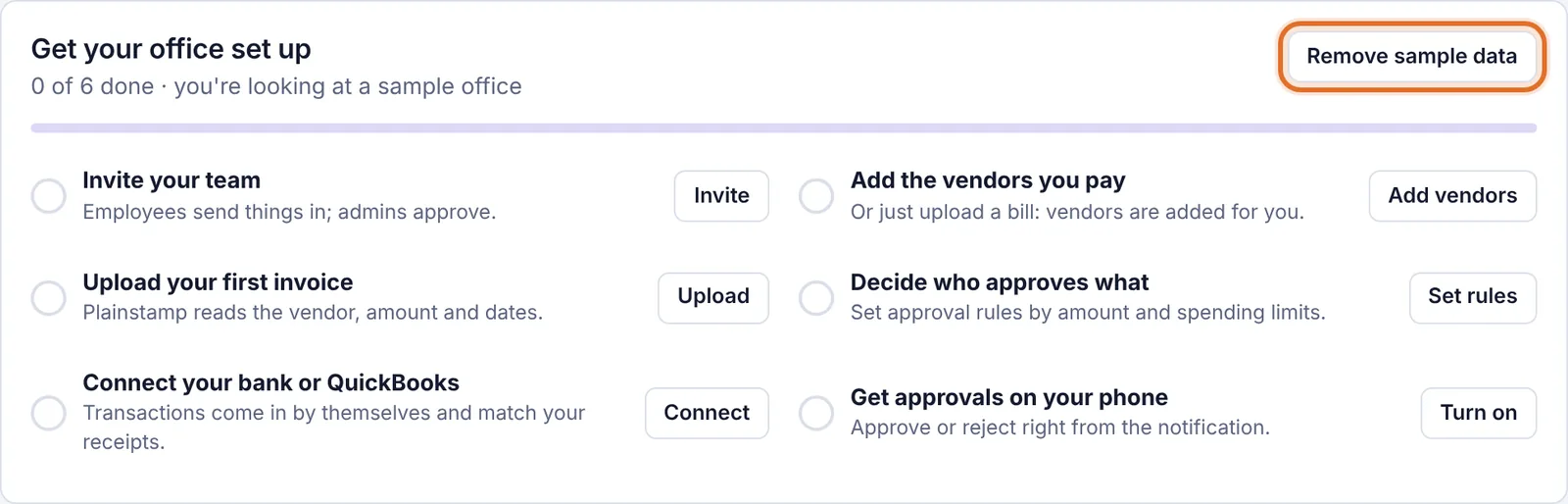
The checklist with the Remove sample data button highlighted, while the sample office is loaded.
Every sample task, bill and transaction is deleted. Sample vendors are removed too, unless you've added a real bill or transaction for one of them; then that vendor stays. Anything you added yourself is never touched.
Hide the checklist#
If you'd rather not see the checklist, click Hide. It disappears for everyone in the workspace. It also goes away by itself once all six steps are done. (While the sample office is loaded, Hide is replaced by Remove sample data.)
The steps are the same as the table above, so you can always come back to this article.