Start here if you're a worker
Your jobs in one place: see what's due, tick tasks off, add photos and comments, and ask for new tasks.
As a worker you see the tasks given to you and the ones you add, nothing else. No money, no vendors, no one else's work. Plainstamp works well on a phone, so you can keep it in your pocket on the job.
Your home page: My work#
When you open Plainstamp you land on My work, which greets you by name.
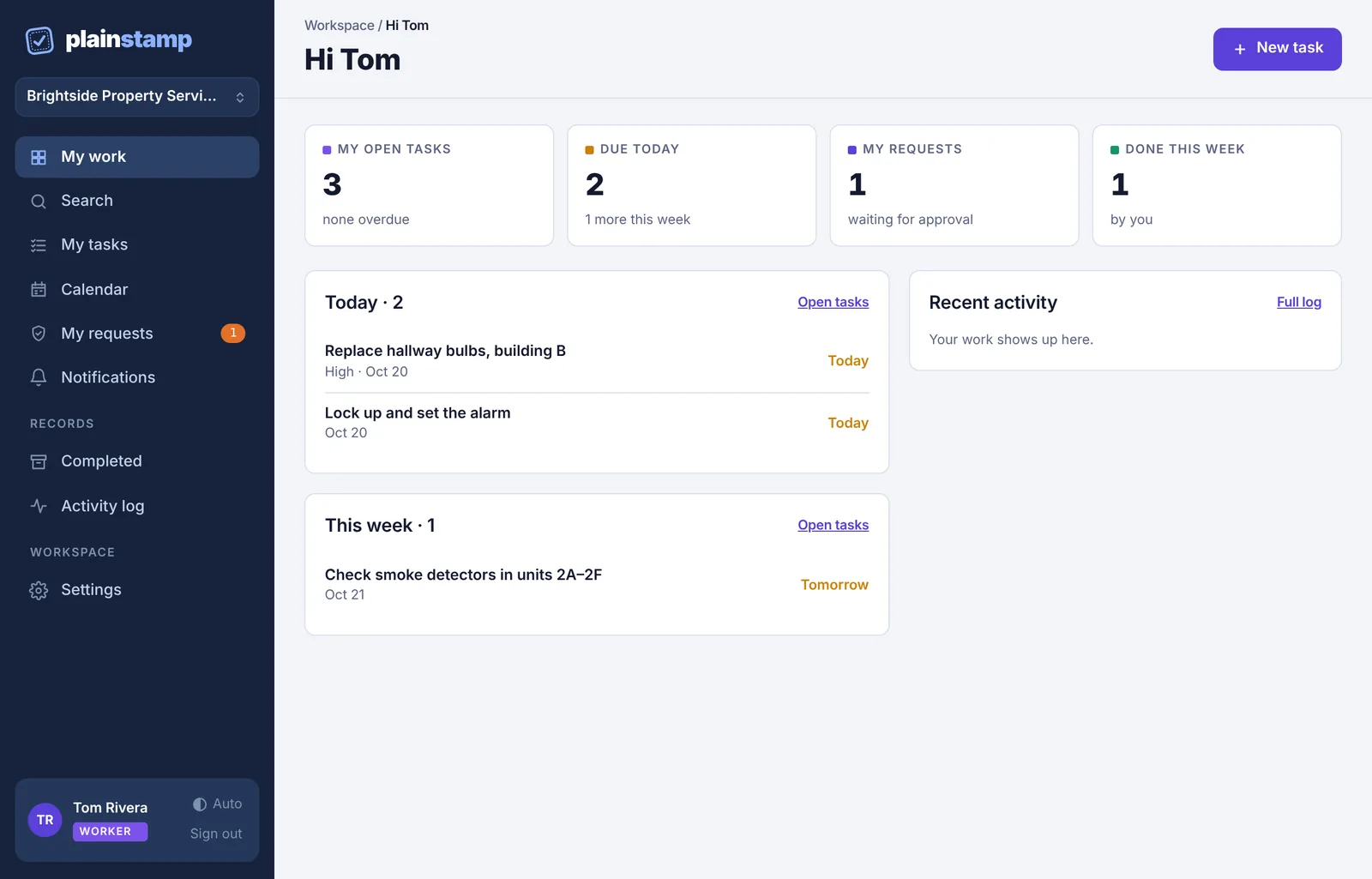
The four cards show My open tasks, what's Due today, My requests waiting for approval, and what you've Done this week.
Below, your tasks are grouped under Overdue, Today, This week, Later and No date. Overdue ones are red.
Click any task to open it.
Do a task#
Open the task from My work or My tasks.
Read the details, the checklist and any comments.
Add a comment or attach a photo of the finished job if you need to.
Tick it off when it's done. It moves to Completed and counts toward Done this week.
See Tasks for workers for the details.
Ask for a new task#
Spotted something that needs doing? Click New task, describe it, and choose who it's for (yourself or someone else). It goes to an admin for approval first; once approved it shows up on the board. If an admin sends it back, you'll see it in red under My requests with their reason, and you can fix it and send it again.
Your menu#
Your menu has just what you need: My work, Search, My tasks, Calendar, My requests, Notifications, Completed, Activity log and Settings. If you open a page that isn't for you, Plainstamp says "This page isn't part of your access".
Get told when you have new work#
Turn on notifications on your phone in Settings › Notifications › Turn on for this device. On an iPhone you need to add Plainstamp to your Home Screen first. See Phone notifications aren't arriving.