The Notifications page
Where Plainstamp tells you about requests, decisions, mentions, assignments and bills due, and how to mark them read or clear them.
Everything Plainstamp wants to tell you lands on the Notifications page, even if you've turned emails and phone notifications off.
What you'll be notified about#
Someone sent you something to approve (and when a request needs your second approval).
Your request was approved, or rejected with a reason (or "No reason given").
Someone mentioned you in a comment, or gave you a task.
A bill is coming due, a budget is nearly spent, or something else needs attention.
You're never notified about things you did yourself.
Read your notifications#
Click Notifications in the menu. The orange number next to it is how many you haven't read.
New ones have a dot and a tinted background. They're grouped under Today and Earlier.
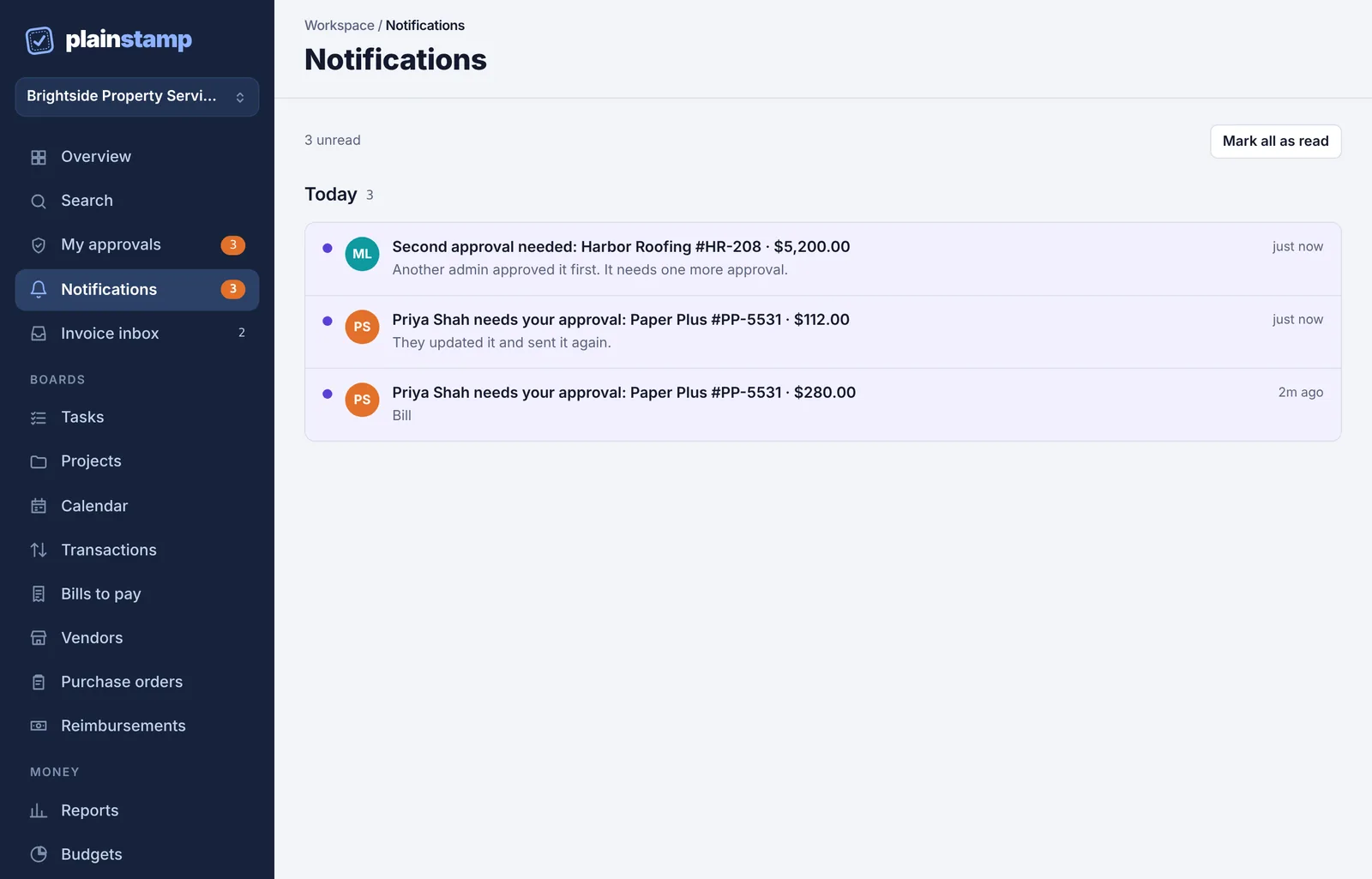
The Notifications page with three unread notifications under Today and the Mark all as read button. Click a notification to mark it read and jump straight to what it's about, for example the request in My approvals.
Approve or reject right from the list#
If you're an owner or admin, an unread needs your approval notification has Reject and Approve buttons under it.
Approve approves the request, the same as on the Approvals page.
Reject opens a box for a reason (optional; the person who sent it sees it). Click Reject again to confirm, or Cancel. If you leave it empty, they're told "No reason given".
The notification is marked read once you've decided. See Approve or reject a request for everything else you can do with a request.
Tidy up#
Mark all as read clears the orange number without opening each one.
Clear read deletes the notifications you've already read. Unread ones stay.
When you've cleared everything, the page says "You're all caught up".
Notifications belong to you and to this workspace. If you're in more than one workspace, each has its own list.
Emails and phone notifications#
The same news can also reach you by email and on your phone or computer. You choose which in Settings › Notifications: see Choose which emails and notifications you get. If they aren't arriving, see I'm not getting emails from Plainstamp and Phone notifications aren't arriving.