Switch between workspaces or add another
Belong to more than one workspace, switch between them from the top of the menu, and create a new one for a second business or client.
A workspace has its own people, boards, books and plan. You can belong to as many as you need: for example a second business, or one per client if you keep the books for several.
Switch to another workspace#
Click the workspace name at the top of the menu.
Under Your workspaces, click the one you want. The one you're in has a tick.
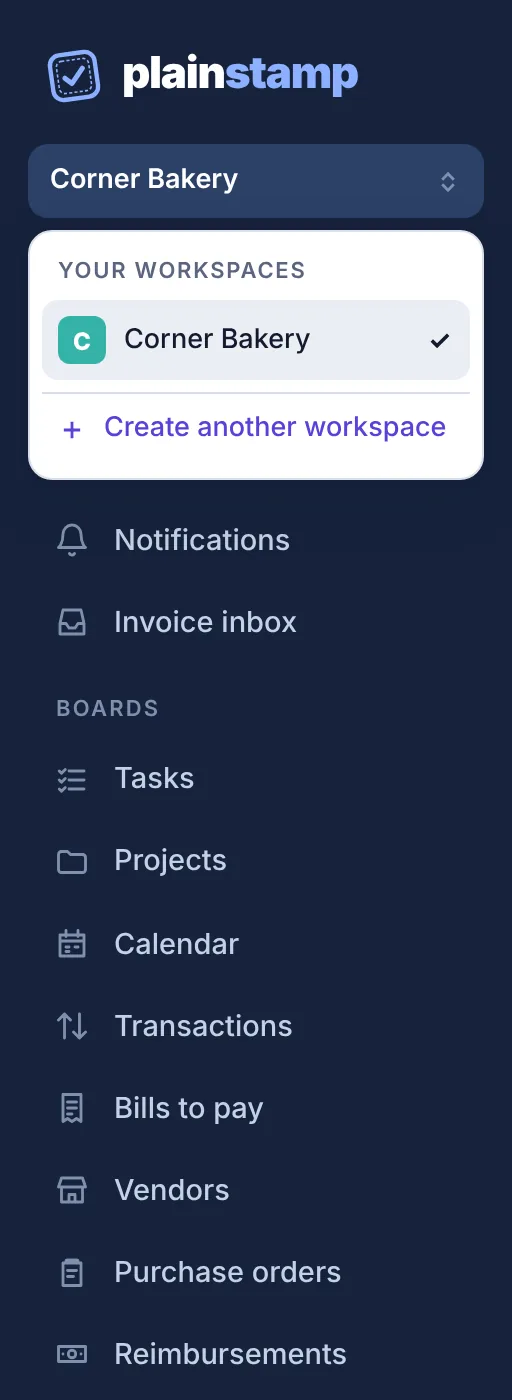
The workspace menu open at the top of the sidebar, with Your workspaces and Create another workspace.
Plainstamp remembers the workspace you used last and opens it next time you sign in. If it can't tell which one you want, it shows Choose a workspace with each workspace and your role in it.
Join another team's workspace#
Ask an admin there to invite you, then open the link they send you while signed in and click Join workspace. See Invite your team.
Create another workspace#
Click the workspace name at the top of the menu.
Click Create another workspace.
Type the Office or organization name and click Create workspace.
You're the owner of the new workspace. It starts on the free Starter plan, with its own billing, and nobody from your other workspaces is added to it. Click Back to my workspaces if you change your mind.
What's shared between workspaces#
Your sign-in: one email and password (and two-step sign-in) for all of them.
Your name as your team sees it.
Your notification choices in Settings › Notifications, unless an admin has set them for you in a particular workspace.
Everything else (people, entries, files, settings and the plan) is separate.