Clean up completed items automatically
Have old completed tasks, reconciled transactions and paid bills moved to the trash after a number of days, so the Completed page stays short.
Over time the Completed page fills up. Automatic clean-up clears out old items for you: once a day, completed items older than the number of days you choose are moved to the Trash. They wait there for 7 days, so they can still be restored, and then they're deleted for good.
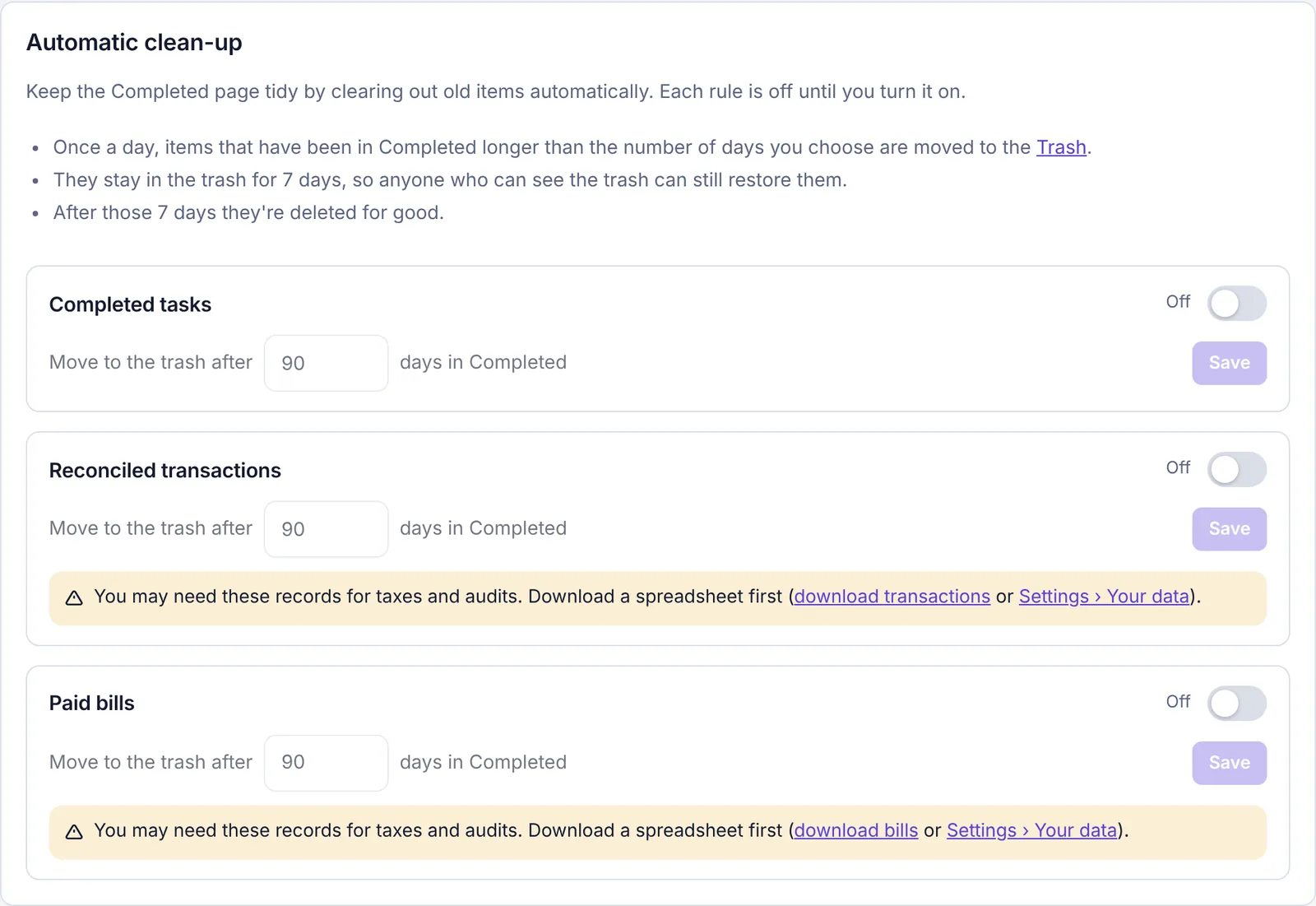
The three rules#
| Rule | What it clears | Counted from |
|---|---|---|
| Completed tasks | Finished tasks | When the task was ticked off |
| Reconciled transactions | Reconciled transactions | When it was marked reconciled |
| Paid bills | Bills paid in full | When the bill was paid |
Every rule is off until you turn it on. Open tasks, unreconciled transactions and unpaid bills are never touched.
Turn a rule on#
Go to Settings and click the Clean-up tab.
Turn on the switch next to the rule, for example Completed tasks.
In Move to the trash after … days in Completed, enter the number of days (1 to 3650). For example, 90 keeps about three months of finished tasks.
Click Save on that rule.
A message confirms it, for example "Completed tasks will move to the trash after 90 days in Completed." Each rule has its own Save button; saving one doesn't change the others.
To stop a rule, turn its switch off and click Save. Nothing already in the trash is affected; restore it from the Trash if you need it.
When it runs#
Clean-up runs once a day.
Items it moves show Clean-up as who deleted them in the Trash.
They stay in the trash for 7 days. Owners and admins can restore them until then. After that they're deleted for good, with their comments and attached files.
Keep a copy of money records first#
Spreadsheet downloads come with the Team and Business plans, for owners, admins and accountants. The owner can download everything as a zip file on any plan.