The Team page at a glance
What's on the Team page, what owners and admins can do there, and what everyone else sees.
The Team page lists everyone in your workspace with their role. Owners and admins also invite people, change roles and turn accounts off from here.
To open it, click Team in the menu on the left, under Workspace.
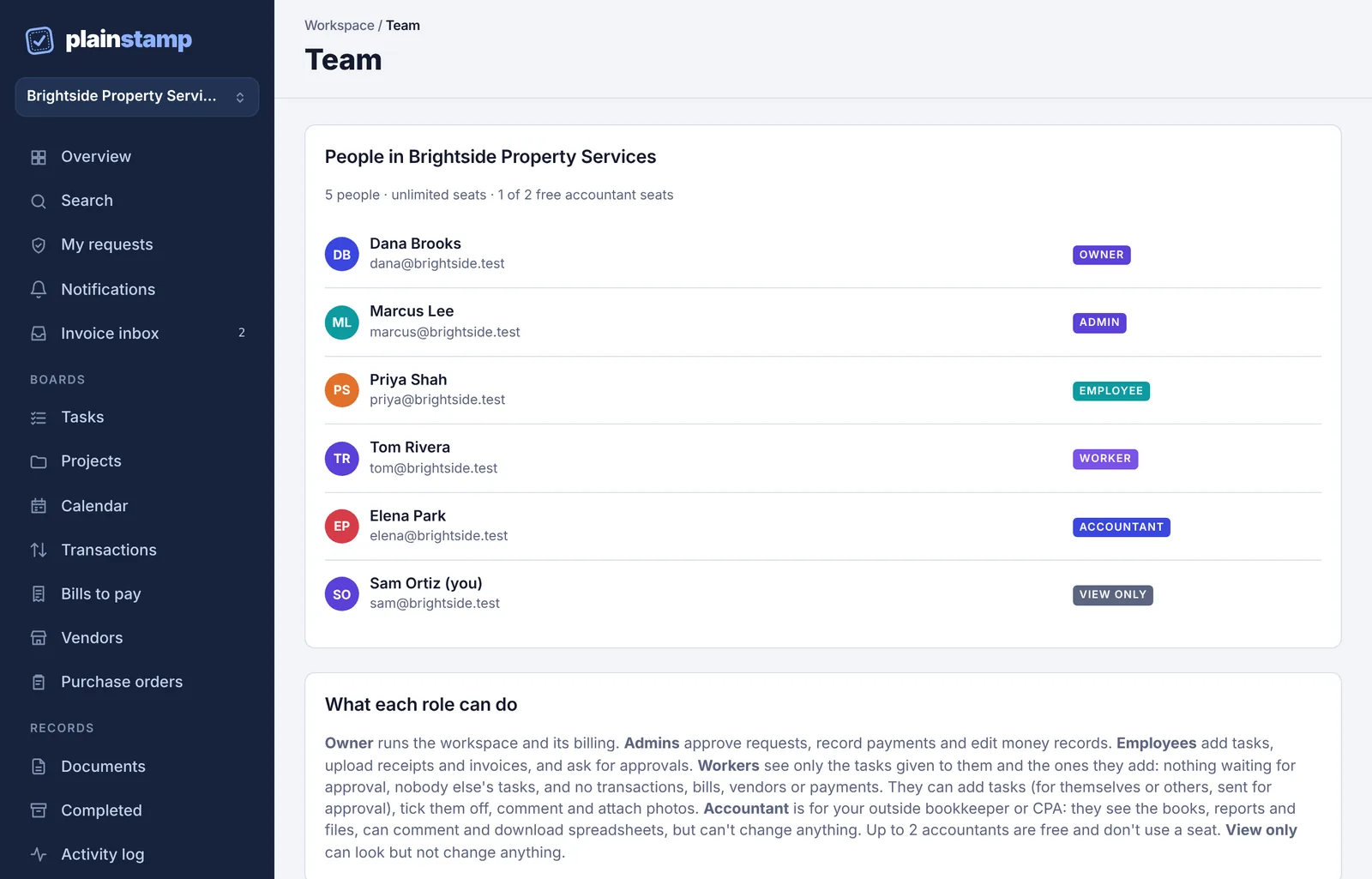
What owners and admins see#
From top to bottom:
| Part of the page | What it's for |
|---|---|
| Invite someone | Create an invite by email or as a link. See Invite people to your workspace. |
| People in your workspace name | Everyone whose account is on, with the seat bar at the top. |
| Turned off | People whose account you turned off. Only shows if there are any. |
| Waiting to join | Invites nobody has used yet, with their links. Only shows if there are any. |
| What each role can do | A short description of each role. |
Each person's row#
Next to each person you see:
Their name and email. Your own row says "(you)".
For employees, their spending limit: "Limit $250.00" or "No spending limit". This is what they can record without waiting for an admin to approve it. You set it in Settings › Approval rules. See Spending limits.
A role list with a Save button. See Change someone's role.
Turn off and Remove. See Turn someone off or remove them.
Make owner, next to admins only, and only when you're the owner. See Hand over the workspace to a new owner.
The owner's row and your own row show the role as a label, with no buttons. Nobody can change the owner's role or their own.
The seat bar#
The line under People in your workspace name shows how many seats you've used, how many invites are waiting, and how many free accountant seats are taken, for example "4 of 6 seats used (1 waiting to join) · 1 of 2 free accountant seats". When every seat is used, owners and admins also see Get more seats, which opens Plan & billing. See Seats and plan limits.
What everyone else sees#
Employees, accountants and view-only people see a read-only version:
The People in your workspace name list, with each person's name, email and role.
The seat bar (without the invites waiting to join).
What each role can do.
They don't see invites, spending limits, turned-off people or any buttons. An accountant also sees the note "You're here as the accountant, so you can read and comment but not change entries."
Workers can't open the Team page. If they follow a link to it, they see "This page isn't part of your access". See Workers: assigned work only.