Save a view of the Tasks page
Save the filters, search, sort and layout you use often, and get back to them in one click.
If you look at the same tasks every day, like "overdue tasks for the office move" or "everything given to Marcus", save that as a view. Next time it's one click away.
Save a view#
On the Tasks page, set things up the way you want:
List or Board,
a filter such as Overdue or Waiting,
a project, a person or a tag from the menus,
a word in Search tasks,
and an order from Sort.
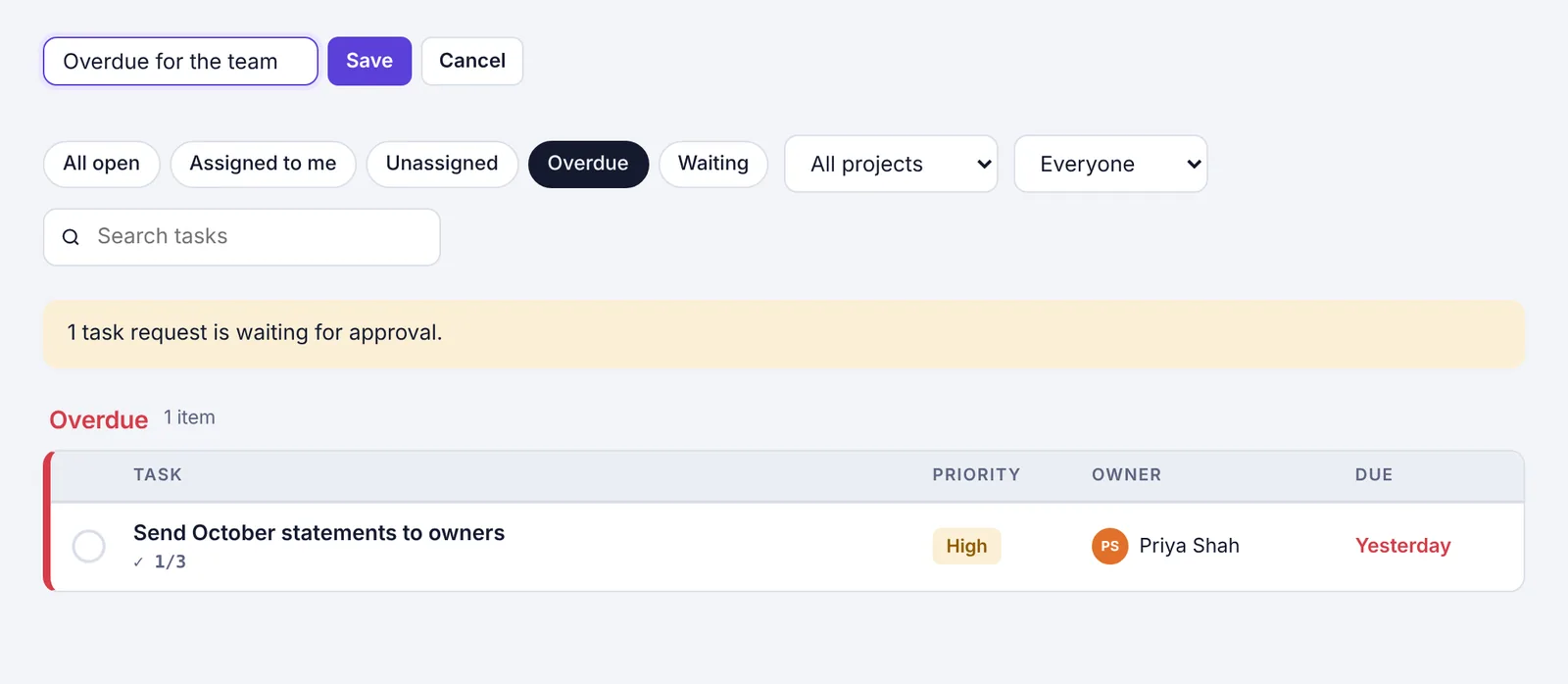
Click + Save this view above the filters.
Type a name in Name this view, for example "Overdue for the team".
Click Save (or press Enter).
You'll see a message like Saved "Overdue for the team". The view appears as a button next to + Save this view.
Open a saved view#
Click its name. The Tasks page switches to the saved layout, filters, search and sort. The button is dark while you're looking at exactly that view; change a filter and it goes light again.
Remove a saved view#
Click the × next to its name. It's removed straight away ("View removed."). This only removes the shortcut; no tasks change.
Things to know#
They're personal. Nobody else sees your saved views, and you don't see theirs.
One workspace at a time. Views you save in one workspace don't show in another.
Up to 50. You can keep up to 50 saved views in a workspace. After that, remove one before saving another.
Names can be up to 60 characters.
To change a view, set it up the new way, save it again, and remove the old one.
The Search page has saved views too, and they work the same way.