What you see when you open a task
Everything in an open task, from who it's for and when it's due to its checklist, files, comments and history, and the buttons at the bottom.
Click any task on the Tasks page (in the list, on the board, or from the calendar) and its details open on the right. Everything about the job is in one place.
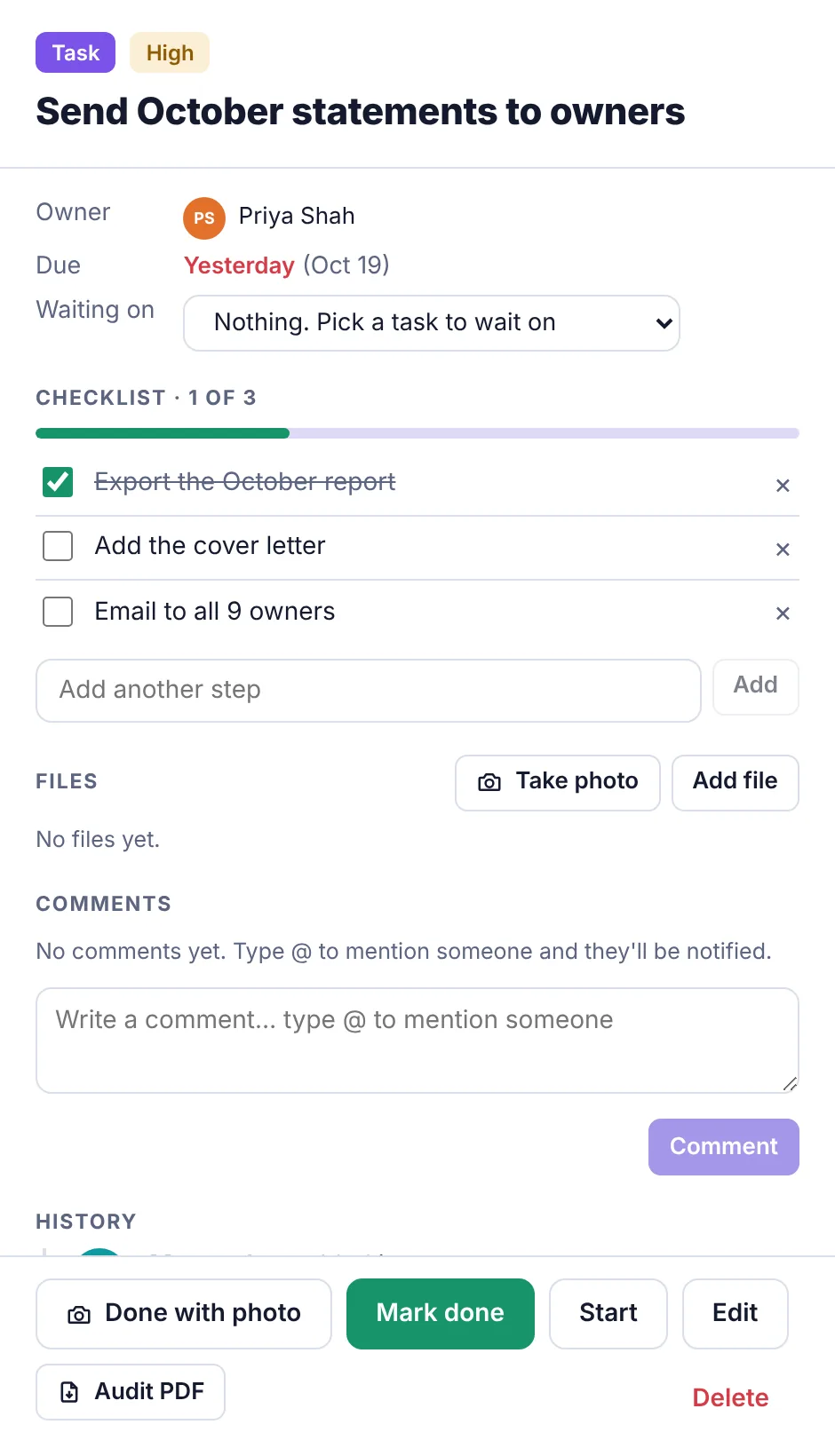
At the top#
Task, then its priority (Low, Medium, High or Urgent).
Doing if someone has started it, or Done if it's finished.
How often it repeats, if it's a repeating task.
The task's name and its tags.
If the task was written in another language and translation is on, a note that it was translated, with Show original. See Read tasks and comments in your own language.
The details#
| Line | What it shows |
|---|---|
| Owner | The person it's assigned to, or Unassigned. |
| Due | When it's due: Today, Tomorrow, Yesterday or the date (with the date in brackets too when it's today, tomorrow or yesterday). Late dates are in red. No date if it has none. |
| Waiting on | The tasks this one has to wait for. See Make a task wait on another task. |
| Project | The project it's in, if any. See Projects. |
| Department | Its department, if any (not shown to workers). |
| Photo | Needed when it's done, if it needs a photo. See Tasks that need a photo. |
| Repeats | For example Every week · the next one is added when this is done. |
| Details | The notes written when it was added. |
| Your own fields | Any custom fields filled in for it. |
Lines that don't apply are left out.
Further down#
Checklist: the steps, with a progress bar. See Break a task into steps with a checklist.
Files: photos and documents attached to it, with Take photo and Add file.
Comments: the conversation about the job. Type @ to mention someone. See Comment on a task, mention someone and attach files.
History: who added it (or who asked for it and who approved it) and who completed it, with when.
The buttons at the bottom#
| Button | What it does | Who sees it |
|---|---|---|
| Done with photo | Takes or picks a photo, attaches it and marks the task done in one go. | Anyone who can tick the task off |
| Mark done | Ticks the task off. It moves to Completed. | Anyone who can tick the task off |
| Start | Moves it to Doing so others know someone's on it. Hidden once it's started. | Anyone who can tick the task off |
| Edit | Opens the form to change it. See Edit or delete a task. | Owners, admins and employees |
| Audit PDF | Downloads one PDF with the details, approvals, history, comments and files. | Anyone who can tick the task off |
| Delete | Moves it to the Trash after you confirm. | Owners, admins, and employees who added it |
"Anyone who can tick the task off" means owners, admins and employees, and workers when the task is assigned to them. Accountants and view-only members can read everything in a task, but see no buttons at the bottom.
On a finished task (opened from the Completed page) you'll see Reopen instead of Mark done and Start, and there's no Edit.
Open a task from a link#
Notifications and emails about a task, like "Dana gave you a task", open the Tasks page with that task already open. Events in your calendar app have a link that does the same.
To close the task, click anywhere outside it, or press Esc.